A few weeks ago at the Arizona Fabric User Group, Bill Taggart presented on DevOps with Power BI and one of the interesting new features he highlighted was Power BI Desktop projects. I made a mental note to look at it once it came out of preview, but it proved to be useful much sooner than I thought…
What are Power BI Desktop projects, and why should I care?
The proprietary storage format of Power BI Desktop files (.pbix) have made it difficult to implement source control fully in the past, as you could not get an accurate view of the changes made to it. Power BI Desktop projects (.pbip) untangles that and stores the definition of almost everything (data model, reports, etc.) in plain text files, which now makes it possible to use all the features of source control and get a clear view of changes between two files.
It’s a pretty significant development, and one that will open up an entire new realm of possibilities. Think about third party tools like Tabular Editor that were handcuffed by what the .NET based object model allowed them to do. The fact that we now have an open source and structured file format makes it a lot easier for these tools to provide a better experience with more powerful features. And that’s just the tip of the proverbial iceberg…
Can’t we copy visualizations already?
Yes, a few years ago a feature was released to allow the copying of visualizations…even across different Power BI Desktop files. That in itself was a great improvement, and while we can now copy visualizations pretty easily it still isn’t perfect.
Take the following report page as an example (image below): We have a graph that shows the number of working days per month, and have applied a filter to the entire page to only show data for 2024.
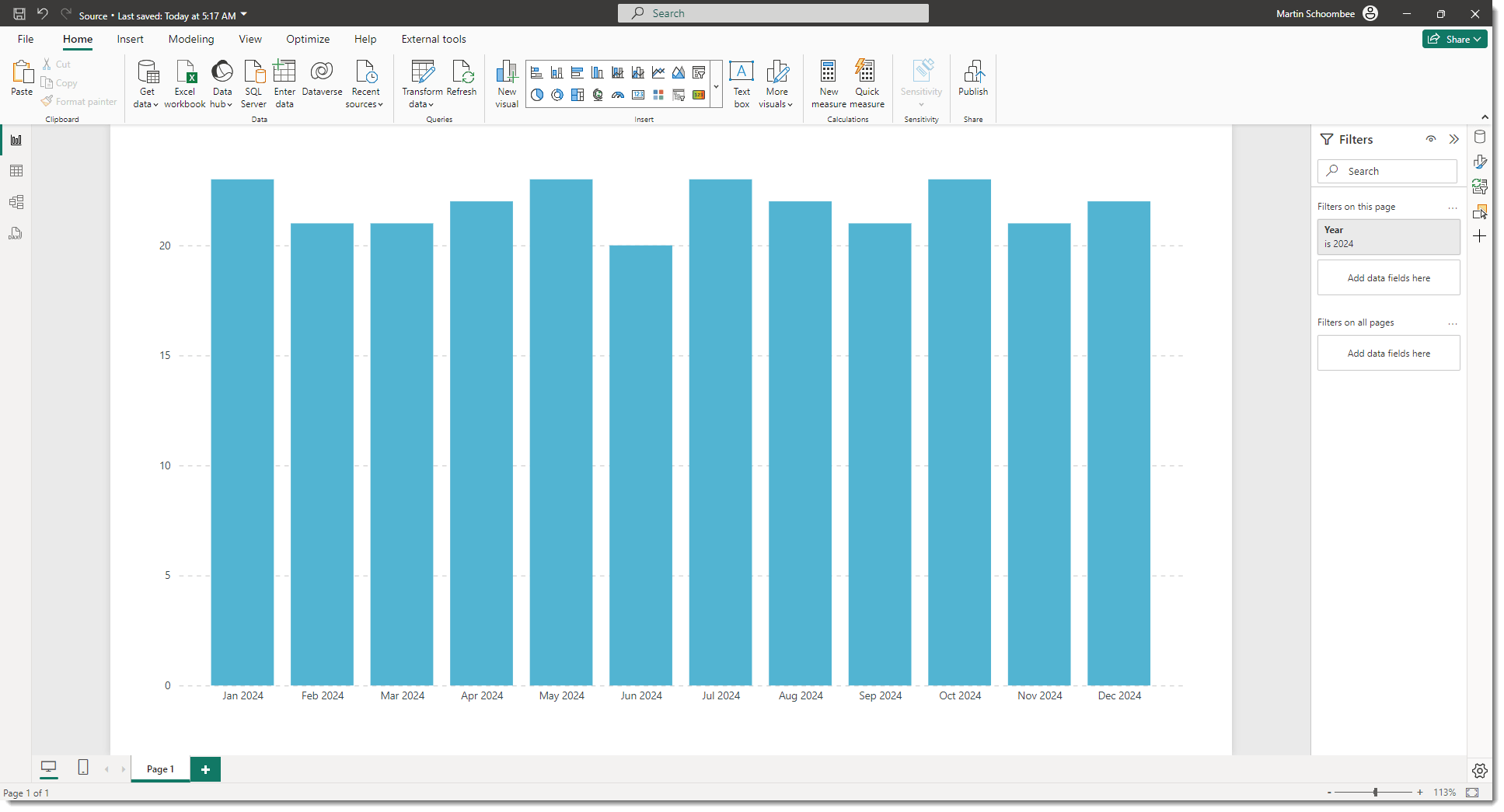
If we copy the visualization to a new Power BI Desktop file, the following happens:
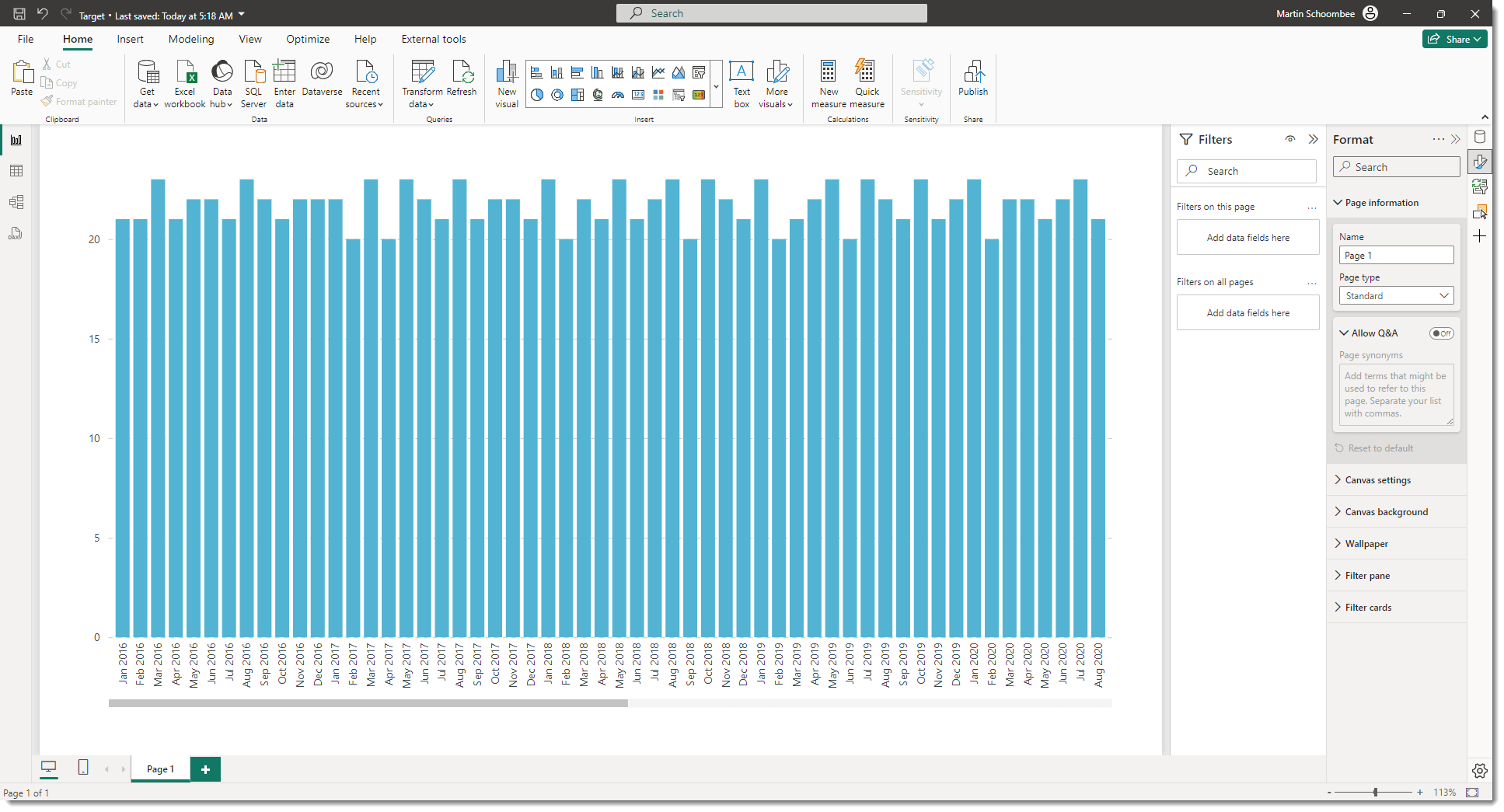
The visualization and formatting was copied as expected, but the page-level filter was not and we now have a graph that shows the data for multiple years. If you had multiple visualizations with non-default interactions, those would also have disappeared.
Power BI projects to the rescue!
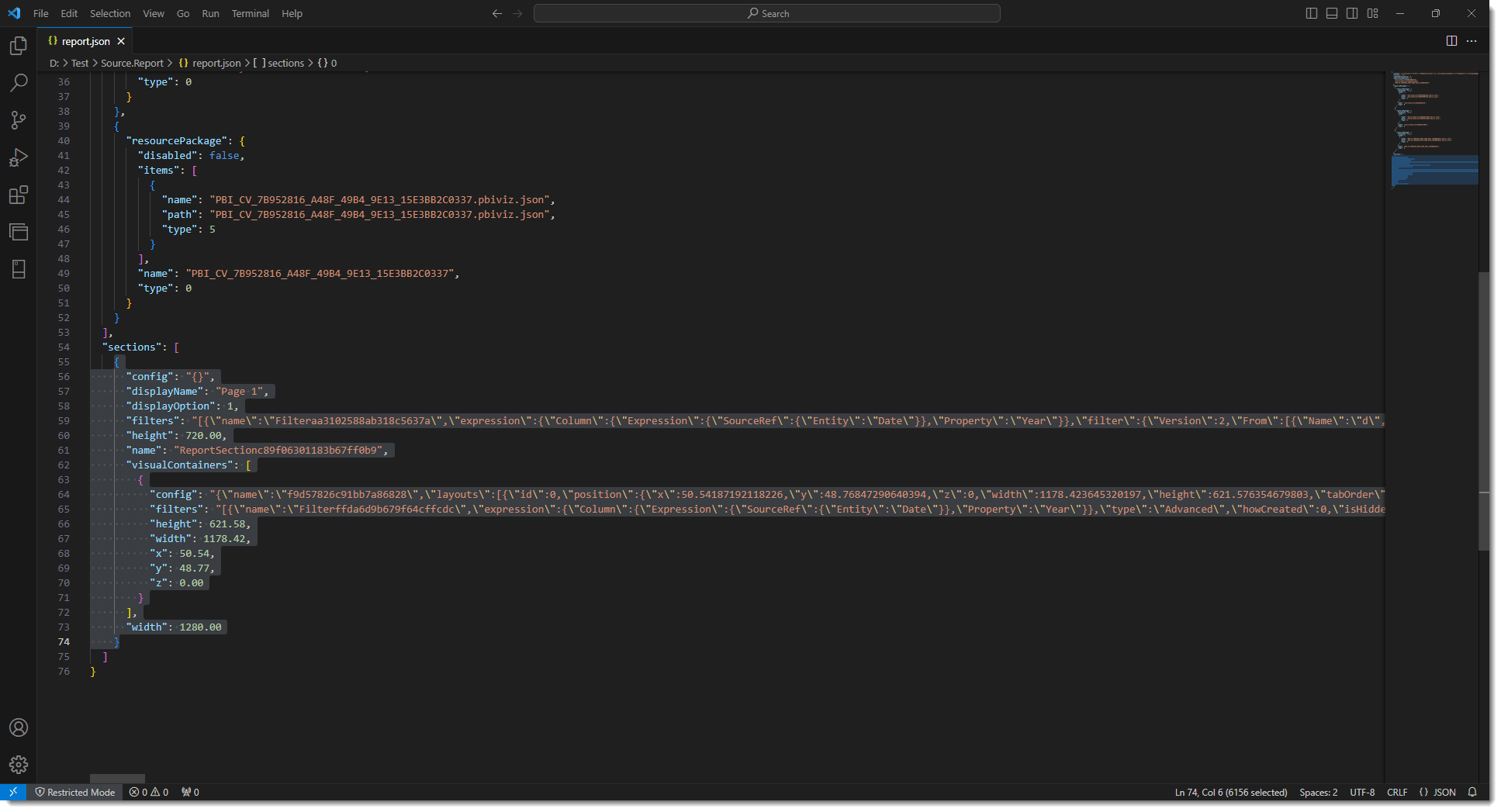
After enabling the preview feature and saving both of the Power BI Desktop files as Power BI projects, you’ll see a Power BI project file (.pbip) for each, as well as a folder for both the dataset and report of each original Power BI Desktop file. Open up the report.json file for the source report (I’m using VS Code in the image below) and you will see a sections element that contains the details of the page (highlighted text in the image). Copy that to the same section in the report.json file of the target, and you will now have a perfect copy of the source report which includes any custom interactions & page-level filters as well. Bazinga!!
One thought on “Copy a report page from one Power BI Desktop file to another”